
KWFinder is widely regarded as one of the best keyword research tools available in today’s competitive digital marketing landscape.
Whether you’re just starting your SEO journey or you’re an experienced SEO professional looking to refine your strategies, KWFinder is a powerful resource to have in your toolkit.
It simplifies the often complex process of keyword research, helping you find the most relevant and valuable keywords that align with your audience’s search intent.
One of the key benefits of KWFinder is its user-friendly interface, making it accessible for beginners while still offering robust features that advanced users can leverage for in-depth analysis.
By using KWFinder, you can efficiently uncover long-tail keywords, explore keyword difficulty levels, assess search volume, and gauge the competitiveness of various terms—critical data for crafting a successful SEO content strategy.
In this article, we’ll take a deep dive into how to use KWFinder for effective keyword research and content creation.
How to Use KWFinder Keyword Research, Step by Step
Keyword research is the foundation of any successful SEO strategy. It helps you identify the right keywords to target, measure competition, and optimize your content for both search engines and users. With KWFinder, this process becomes more manageable and effective. Let’s walk through how to use KWFinder for keyword research step by step.
Step 1: Create Your Free KWFinder Account
To start using KWFinder, the first thing you need to do is create an account. KWFinder offers both free and paid versions, so you can start exploring its features with a free trial. Visit their website, sign up with your email address, and verify your account. Once your account is active, you’ll gain access to all the key features, like keyword search, competitor analysis, and SERP (Search Engine Results Page) data.
When I first started using KWFinder, I made the mistake of jumping right in without really understanding all the features. 🤦♀️ Don’t be like me! Take a little time to explore and play around with the different tools. Trust me, it’ll save you a lot of headaches down the road.
Step 2: Choose Your Seed Keyword
Once you’re logged in, the next step is to choose your “seed keyword.” A seed keyword is the primary term or phrase you want to target. This will be the basis for the rest of your keyword research. For example, if you’re running a blog about fitness, your seed keyword might be “home workouts” or “exercise routines.” Choosing the right seed keyword is crucial as it sets the direction for all your subsequent keyword research.
Semantic keywords that are related to your seed keyword, such as “fitness at home,” “bodyweight exercises,” or “workout plans,” will provide a broader keyword pool for you to explore. KWFinder helps you identify these variations quickly.
Step 3: Analyze Your Keyword Report
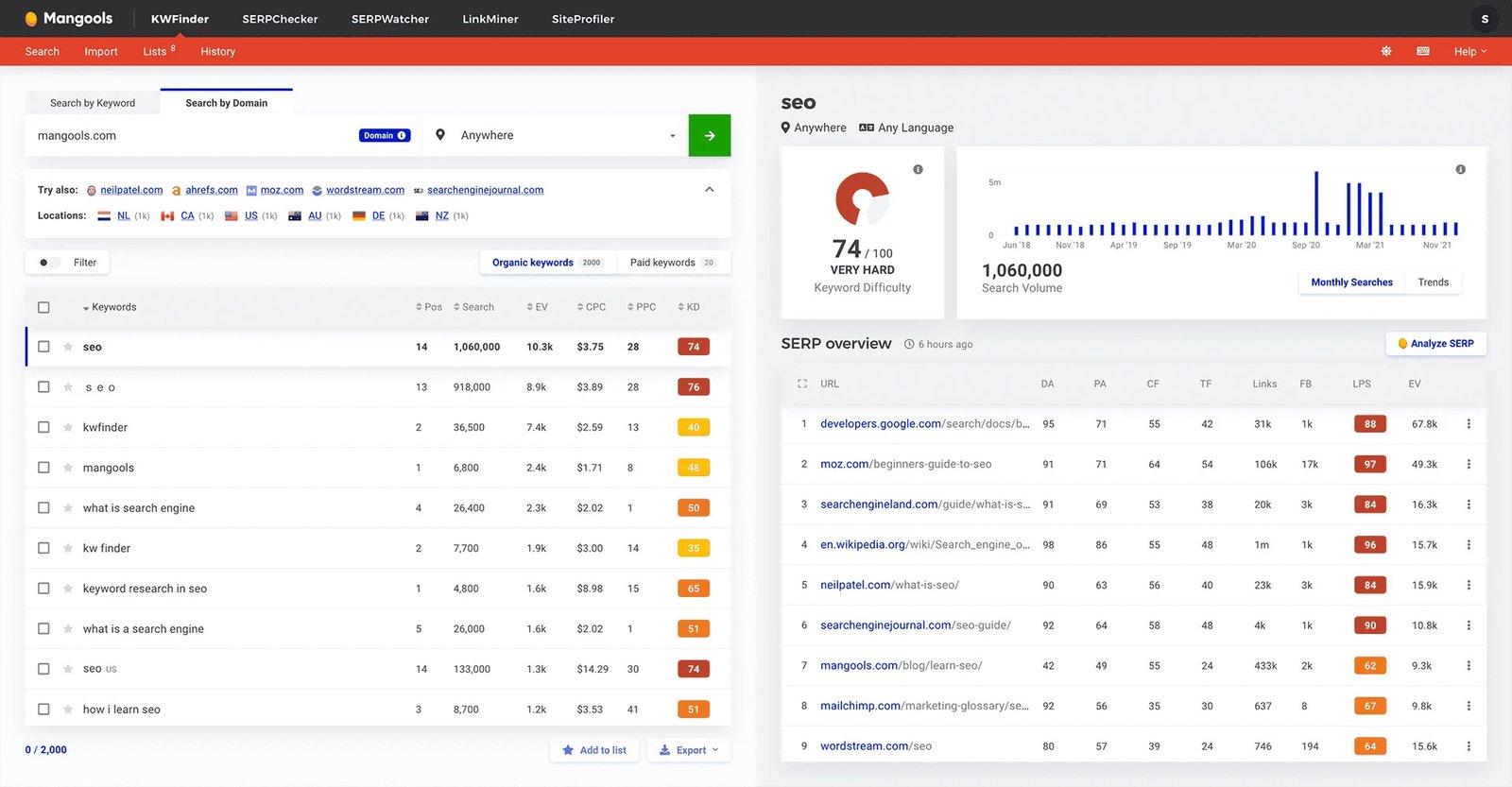
After entering your seed keyword, KWFinder will generate a comprehensive report. This report gives you critical data on the keyword’s potential, helping you make informed decisions about which terms to target.
Search Volume
Search volume is one of the most important metrics to consider when choosing a keyword. It indicates how often a keyword is searched for within a given period, usually per month. KWFinder displays this number so you can quickly assess whether a keyword is worth targeting. Higher search volume often correlates with more competition, so be mindful of your keyword difficulty.
Keyword Difficulty (KD)
Keyword Difficulty (KD) is a score that tells you how difficult it will be to rank for a specific keyword. It ranges from 1 to 100, with 100 being the hardest. If you’re targeting highly competitive keywords with high search volume, expect the difficulty score to be high as well. KWFinder uses a proprietary algorithm to calculate this, which factors in the strength of your competitors’ websites for that keyword.
Does Domain Rating/Authority Matter?
Domain Rating (DR) or Domain Authority (DA) refers to the strength of a website’s overall backlink profile. High DR means the site is more authoritative and likely to rank for competitive keywords. When analyzing keyword reports, check the DA of websites ranking for the keyword. Higher DA indicates that ranking for that keyword might require more effort, unless your website is already well-established.
SERP Overview
The SERP overview gives you a snapshot of the top-ranking pages for a given keyword. You can see which pages are currently ranking, their DR, and their PA (Page Authority). It’s crucial to analyze the SERP to understand what type of content is ranking, what keywords they are targeting, and how strong their backlink profiles are.
Top Tip: Cost Per Click (CPC)
In addition to search volume and keyword difficulty, the Cost Per Click (CPC) is an essential metric to look at. CPC indicates how much advertisers are willing to pay for each click on a keyword through Google Ads. If you’re planning to run paid campaigns, keywords with higher CPCs are generally more competitive and profitable.
Top Tip: Target Low-Difficulty Keywords
While it might be tempting to go after high-volume, highly competitive keywords, targeting low-difficulty keywords can be more effective, especially if you’re just starting out. These keywords often have less competition and provide a better opportunity to rank quickly.
Step 4: Choose Your Keywords
Once you have a list of potential keywords, it’s time to choose the ones you want to target. Look for a balance between search volume, keyword difficulty, and competition. Ideally, you want to target keywords with moderate search volume and low difficulty, but don’t ignore long-tail keywords. These keywords are more specific and often have higher conversion rates because they cater to users with clear search intent.
Step 5: Automatically Generate Relevant Content With AI
One of KWFinder’s standout features is its AI-powered content generator. Once you’ve identified your target keywords, KWFinder can automatically generate SEO-friendly content based on those keywords. This feature is especially useful for creating blog posts, product descriptions, and landing pages.
Using AI to generate content not only saves you time but also ensures that your content is optimized for the keywords you want to rank for. Just input the keyword and let KWFinder handle the rest!
Maximize Organic Traffic with KWfinder Tool
Optional: Choose Your Own Section Headings
While KWFinder provides helpful suggestions for content structure, you can always choose your own section headings. Customizing your headings will help you craft content that’s unique and specific to your audience’s needs. For example, you can add sections like “How to Perform a Home Workout,” “Best Exercises for Beginners,” or “Top Fitness Apps.”
KWFinder Tutorial: Learn How to Use One of the Best SEO Tools
KWFinder isn’t just a keyword research tool; it’s a comprehensive SEO tool designed to help you dominate search rankings. In this section, we’ll walk through the KWFinder tutorial to show you how to use this powerful tool effectively.
KWFinder Tutorial: How to Use the Mangools Keyword Finder Tool
Mangools’ KWFinder is packed with features that allow you to research keywords, analyze competitors, and gain insights into your SEO performance. Let’s break down how to use KWFinder step by step.
First Steps on KWFinder
To begin, log in to your Mangools account and go to the KWFinder section. Here, you’ll be able to enter your keyword or phrase in the search bar.
Enter Your Keywords in the Search Bar
Type in your seed keyword and click on “Find Keywords.” KWFinder will provide a list of related keywords, along with essential metrics like search volume, keyword difficulty, CPC, and more. This will help you decide which keywords are worth targeting.
Explore the Proposed Outcomes
KWFinder will show you several key metrics to analyze the potential of each keyword.
Keywords
The keyword suggestions from KWFinder are based on the seed keyword you entered. These suggestions include long-tail keywords, variations, and related terms that can help you create a more comprehensive SEO strategy.
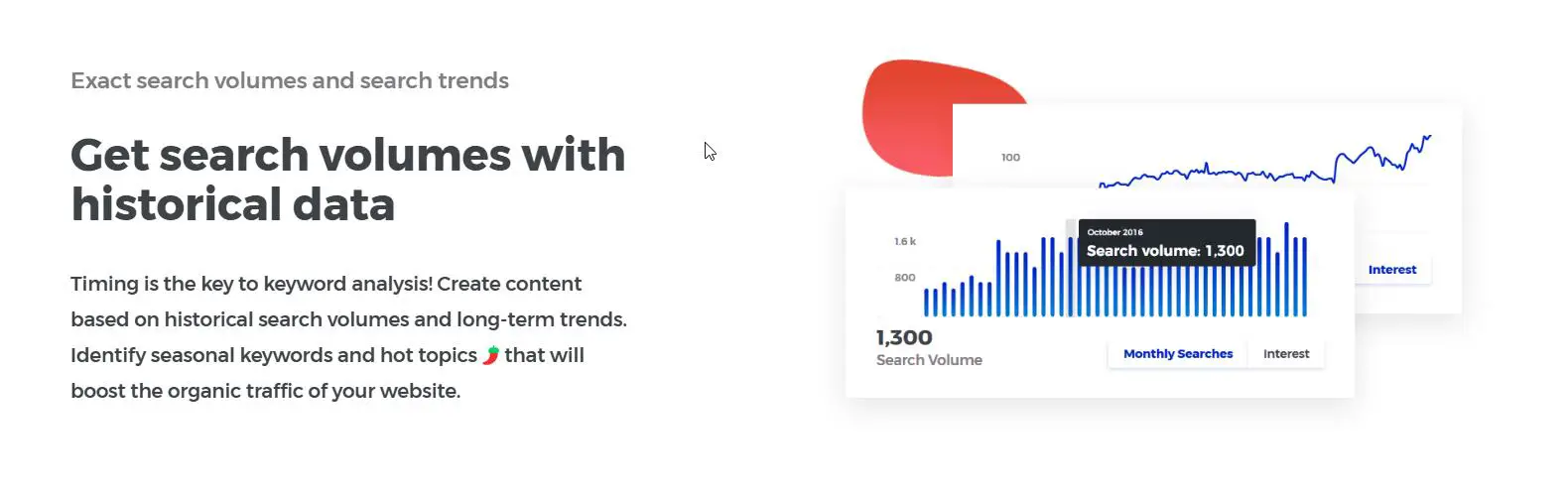
Trend and Search
KWFinder also shows the trend for each keyword. This is useful for understanding whether a keyword is gaining or losing popularity over time. You can also see its search volume history, which helps identify seasonal trends.
CPC (Cost-per-click)
For keywords that have a commercial intent, look at the CPC. High CPC often indicates that advertisers are willing to pay more for clicks, which may also mean that keyword has a high conversion potential.
PPC (Pay-per-click)
PPC data shows how much advertisers are spending on paid ads for each keyword. If you’re planning on running ads, analyzing PPC data can help you assess your keyword’s cost-effectiveness.
KD (Keyword Difficulty)
As we discussed earlier, keyword difficulty (KD) is a score that represents how competitive a keyword is. Low KD keywords are easier to rank for, but they may not have as much search volume. Conversely, high KD keywords tend to have more traffic but require a more established website to rank.
KWFinder Results: Read the SERP Overview
The SERP overview shows a snapshot of the top-ranking pages for each keyword. Here, you can analyze the competition, evaluate their strengths and weaknesses, and adjust your strategy accordingly.
URL
This section lists the URLs of the top-ranking pages. You can click on them to explore the content and see how well it’s optimized for the keyword.
DA (Domain Authority)
Domain Authority (DA) is a metric that predicts how well a website will rank in search engines. If the top-ranking pages have high DA, you might need to work harder to outrank them.
PA (Page Authority)
Page Authority (PA) shows the strength of a specific page rather than the entire domain. This metric is important when analyzing the competition for a specific keyword.
CF (Citation Flow)
Citation Flow is a metric that evaluates the link quality of a website. A higher CF means that the site has strong backlinks, which could make it more difficult to outrank.
TF (Trust Flow)
Trust Flow measures the quality of links that point to a website. High TF means the site has trustworthy backlinks from authoritative sources.
Links
This section shows how many backlinks the top-ranking pages have. A page with more backlinks tends to rank higher in search results.
FB (Facebook Shares)
Social signals, such as Facebook shares, are indicators of how popular a page is on social media. Pages with more social engagement often rank better.
LPS (Link Profile Strength)
Link Profile Strength assesses the quality of the backlinks pointing to a website. Stronger links are generally more authoritative.
EV (Estimated Visits per Month)
Estimated Visits per Month tells you how much organic traffic the top-ranking pages are receiving. This can help you estimate the potential traffic for the keyword.
Use the Autocomplete and Questions Function
KWFinder provides a useful autocomplete and questions function that suggests popular queries related to your seed keyword.
Autocomplete
Autocomplete shows you search queries that are commonly entered by users. These suggestions are a great way to uncover long-tail keywords that are highly relevant to your audience.
Questions
The questions function shows you the most frequently asked questions related to your seed keyword. These can be helpful for generating content ideas and answering specific user queries in your blog posts.
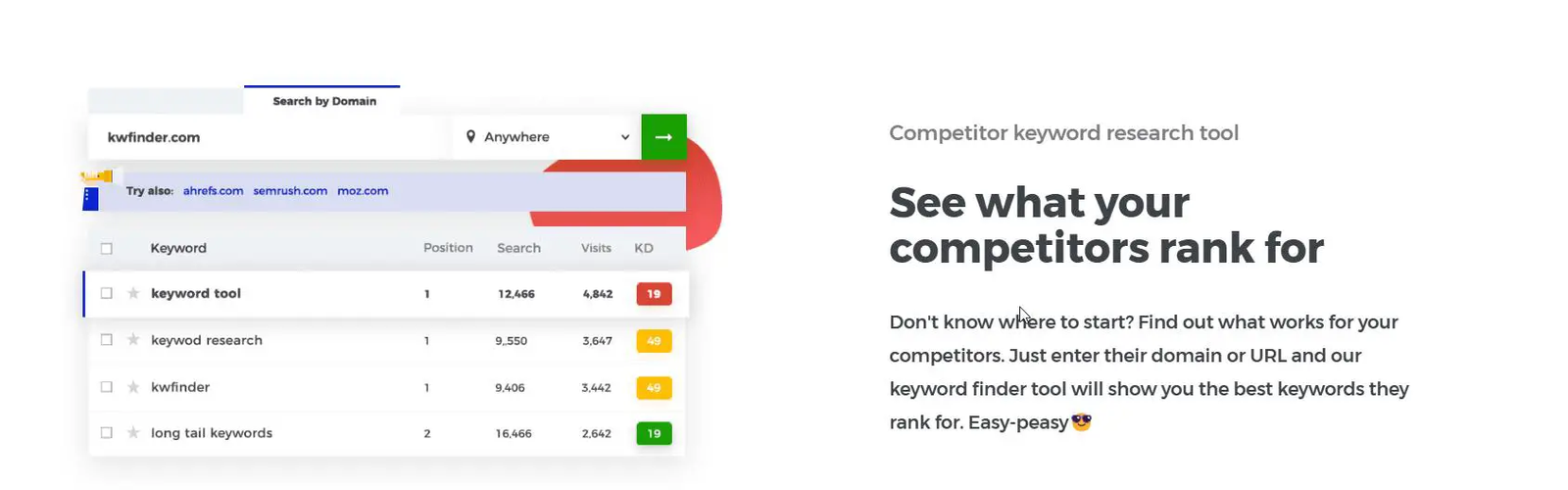
Analyze the Results of Your Competitors
One of the best ways to use KWFinder is by analyzing your competitors’ keyword strategies. By examining the keywords your competitors are targeting, you can find gaps in their strategy and opportunities for improvement.
Use Other Integrated KWFinder Tools
KWFinder integrates several additional tools to help streamline your SEO efforts.
Filter Specific Keywords
You can filter keywords based on search volume, keyword difficulty, CPC, and other metrics to narrow down your focus.
Add Keywords to Lists
KWFinder allows you to add selected keywords to custom lists, making it easier to track and organize them.
Export Your Keywords
Finally, you can export your keyword data into CSV format for easy reference and further analysis.
KWFinder Review: Conclusion
KWFinder is an essential tool for anyone looking to improve their SEO strategy. With its user-friendly interface, powerful keyword analysis features, and additional tools, it’s perfect for beginners and advanced SEO practitioners alike. By following the steps outlined in this guide, you can create an effective keyword strategy and optimize your content for higher search engine rankings.

