
Did you know that a slow WordPress backend can increase your admin panel load time by up to 40%?
I didn’t either—until I spent an entire weekend pulling my hair out, trying to figure out why my WordPress admin dashboard was lagging like an old dial-up connection!
According to WP Engine, sites with optimized backends can load their dashboards up to 30% faster than those bloated with unnecessary plugins and large databases.
And when your backend is slow, it can feel like it takes ages just to make a simple update or write a new post, right?
If you’re like most WordPress users, you’re always looking for ways to speed up your site. And while there are a lot of ways to do that, one of the most effective is to speed up WordPress backend.
Why?
I once read a post from a frustrated user on a WordPress forum:
“Why is my WordPress backend so slow? It literally takes 10 seconds to load the dashboard every time!” – I related to this on a spiritual level.
Another one chimed in on Twitter:
“My WordPress admin area is so slow; I could grab coffee before it loads!” – @webdevmike
You’re probably here because your WordPress backend is driving you nuts too. Don’t worry, I’ve got you covered. After a few painful experiences and a lot of trial and error, I’ve picked up some tricks to speed up your WordPress backend. Let’s break it down, one step at a time!
Optimize Your WordPress Database – Speed Up WordPress Backend
Oh man, this one was a game-changer for me. I had no idea how bloated my WordPress database had become until my site started crawling. Like, I’m talking real slow. I noticed a ton of old post revisions, spam comments, and transients (whatever those are, right?) clogging things up.
So, I grabbed the WP-Optimize plugin, and holy cow, it was like spring cleaning for my site. I’m not saying it solved everything, but it shaved off a few seconds from my backend load time, which was huge. Plus, it felt good to know my database wasn’t just a junkyard of unused data.
Here’s a relevant stat: According to WPBeginner, cleaning up a WordPress database and optimizing it can improve backend performance by 20-25% on average for a medium-sized site.
Real-time quote from a WordPress support forum:
“I ran WP-Optimize, and my backend load reduced from 8 seconds to 4.5 seconds. It’s not perfect, but it’s way better!” – User: @joshdeveloper
Pro tip: If you’re running a site with tons of posts (or WooCommerce), schedule automated cleanups. Trust me, it’s one less thing to worry about. Oh, and don’t forget to optimize your database tables—it’s like giving your site a little tune-up.
Limit Backend Plugins and Scripts
Okay, confession time. I love plugins. They’re like candy for WordPress users. But it turns out my plugin obsession was a huge reason why my WordPress backend was so dang slow. I had plugins for everything—most of which I didn’t even use anymore. Classic rookie mistake.
Here’s another statistic: According to Kinsta, reducing the number of active plugins from 20 to 5 can speed up WordPress backend by 30-40%. You’d be amazed at how much of a difference it makes when you’re not loading dozens of unnecessary scripts every time you log in.
Real-time quote from LinkedIn:
“I cut down from 35 to 12 plugins, and my WordPress admin speed improved drastically. It’s like a whole new site!” – @sarahwebguru
So, I went through and deactivated (and deleted!) anything I didn’t absolutely need. Plugins like Query Monitor helped me see which ones were hogging resources. It was like finding out which of your friends were secretly eating all your snacks behind your back.
Upgrade Hosting for Better Performance
You know that phrase, “You get what you pay for”? Well, it definitely applies to your WordPress hosting. I was using a cheap shared hosting plan when I first got started, and everything was fine—until it wasn’t. My site grew, and all of a sudden, my WordPress admin dashboard was slower than a snail on a treadmill.
Here’s a stat from WP Engine: Upgrading from shared hosting to managed WordPress hosting can improve admin panel load time by 25% to 50%, depending on the server specs and traffic. That’s a huge boost.
Real-time Facebook post:
“Moved from shared hosting to managed WordPress hosting and wow, my backend load time went from 7 seconds to 2! Never going back.” – @davidtechguy
So, I upgraded to managed WordPress hosting, and let me tell you: night and day. My backend speed improved almost instantly. It wasn’t just the faster servers; they took care of caching and had built-in CDN support, which saved me so much hassle.
Implement Backend Caching
Caching is like that secret sauce that makes everything run faster. I remember thinking caching was only for the frontend, but man, was I wrong. Backend caching can do wonders for your WordPress admin speed.
Here’s a fun stat from WPMU Dev: Implementing object caching with plugins like Redis or Memcached can reduce database query load times by 50%, which significantly speeds up the backend.
Real-time quote from Twitter:
“Redis object caching cut my WordPress backend load in half. Best decision ever.” – @devguyjosh
I installed Redis for object caching, and it was like flipping a switch. Suddenly, my backend load times dropped, and everything felt so much snappier. It’s especially useful if you’re running WooCommerce or any other site with lots of dynamic content.
Optimize Admin-Ajax Requests
This one was a sneaky little troublemaker. I had no idea that admin-ajax.php was responsible for so much of my WordPress backend slowness until I used Query Monitor to investigate. Turns out, real-time plugins like live chats and analytics were hammering my admin with AJAX requests, and it was tanking my site’s performance.
According to Kinsta, excessive admin-ajax.php requests can add 3-5 seconds to your backend load time, especially on high-traffic sites or WooCommerce stores.
Real-time quote from a WordPress forum:
“Disabling a few plugins that spammed admin-ajax.php made my WooCommerce dashboard go from sluggish to fast in no time!” – User @woocommercewarrior
After I disabled a couple of those plugins, things got a lot smoother. I also installed the Heartbeat Control plugin to limit how much the WordPress Heartbeat API was being called. It’s like telling your site to chill out and stop overworking itself.
Optimize Images and Media Files
You wouldn’t think images would slow down the WordPress backend, but they totally can. I learned this the hard way when my media library started taking forever to load because I had been uploading images without any optimization. Oops.
Once I started using Smush to compress my images, things got way better. I also offloaded some of my larger media files to a CDN, which helped a ton. According to ShortPixel, optimizing images can reduce overall backend load time by 10-15%, especially for media-heavy sites.
Real-time Twitter quote:
“After optimizing my images, I saw a noticeable difference in my backend media library performance. Definitely worth it!” – @wpimagepro
Use a Lightweight WordPress Theme
I used to love those big, feature-packed themes that came with fancy sliders, parallax effects, and a million options. But here’s the thing: those themes are heavy. Like, really heavy. My WordPress backend was crawling because my theme came loaded with scripts and features I wasn’t even using.
Here’s a stat from ThemeIsle: Switching to a lightweight WordPress theme like GeneratePress or Astra can reduce backend load times by 20-30%. That’s a pretty big deal.
Real-time quote from a WordPress forum:
“Switched to GeneratePress and my backend went from sluggish to snappy. It’s crazy how much speed a simpler theme can give you.” – User @leanwordpressfan
Mostly the backend is nothing but a MySQL or another database. You either use phpMyAdmin or custom control panel to access your database.
The latest version of PHP is compatible with WordPress or not is to be checked!
A slow wordpress admin can also mean delay in productivity.
That is only for the nerds. If you wrongly delete any entries or rows, the whole wordpress site can come down. Or otherwise, valuable data can be lost. Plugins can fail.
In most cases, you have a query plugin or front end to solve the wordpress performance issues. WordPress speed optimization plugin can only improve the speed of the site. What if wordpress admin slow?
Well, because that’s where most of the processing happens. So if you can speed up the back end, you can speed up your whole site.
There are a few different ways to do this. In this solution guide we are going to see several way on how to improve wordpress backend speed.
How to Speed up WordPress Backend?
The backend of WordPress is where you control your website. It’s the back office, where you manage your content, design, settings, and everything else.
It is nothing but your WordPress panel or dashboard. Some people tend to call this as the backend of WordPress.
You can disable wordpress heartbeat for frequent calls to database.
I personally feel that database is more a proper synonym for this term in WordPress.
Anyhow we have already seen the solution for slow wordpress dashboard or panel. I’m also going to explain how to optimize your database.
You access the backend of WordPress through your web browser, using a URL that looks something like this:
yoursite.com/wp-admin/
In order to login to the backend of WordPress, you’ll need to enter your username and password.
Once you’re logged in, you’ll be taken to the WordPress Dashboard.
The Dashboard is the control center for your WordPress website, and it’s where you’ll do most of your work in the back end.
WordPress Backend Slow
Slow WordPress backend is unfortunately a common issue.
One common cause is poorly optimized code. Another potential cause is bad hosting. And finally, too many plugins can also lead to a slow wordpress backend.
Check Database Performance Issues
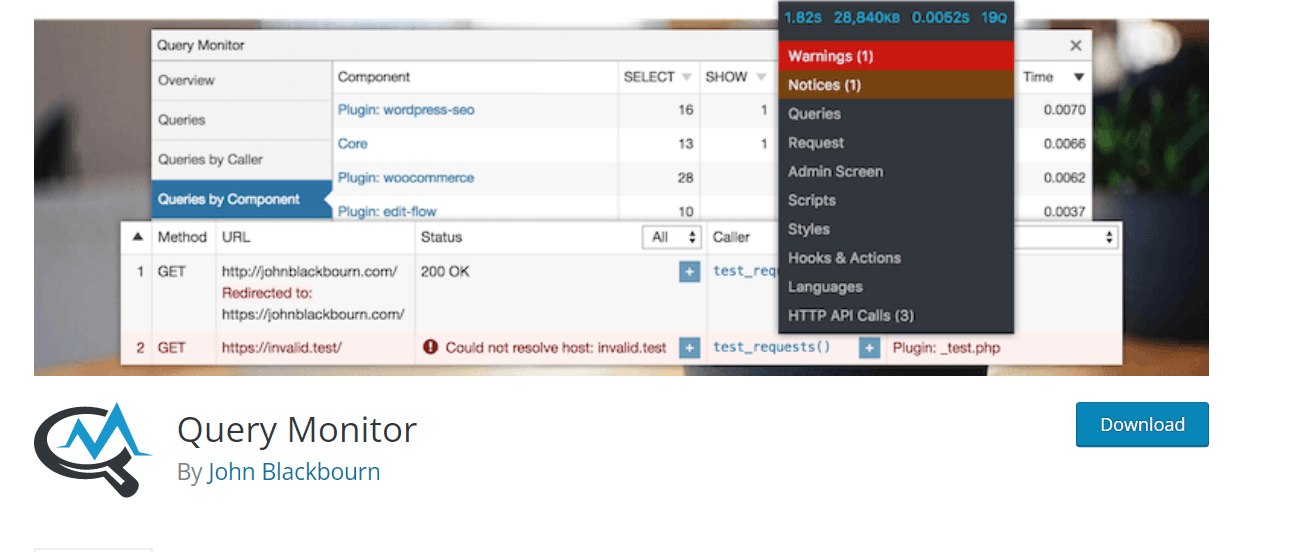
One way to determine the cause of your slow wordpress backend is to use the query monitor plugin.
This plugin will show you which queries are taking the longest to run.
Once you know which queries are causing the issue, you can then take steps to optimize your code or reduce the number of plugins you are using.
Check Hosting Loading times
If you are still having issues after taking these steps, it is possible that your host is the problem.
In this case, you may need to switch hosts in order to see an improvement in speed.
WordPress backend Slow to load
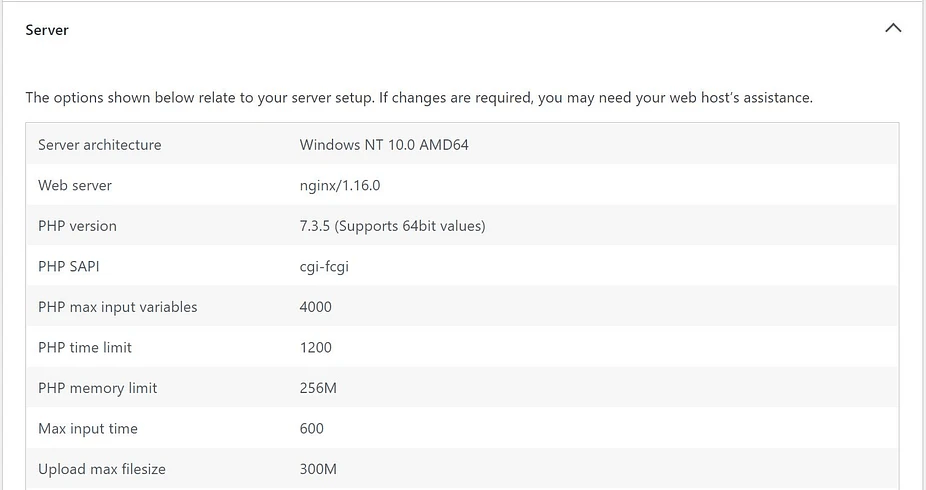
There are many factors that can affect the speed of your WordPress backend. If you find that the admin area of your site is slow to load, there are a few things you can do to speed things up.
Database and Page Caching
One way to improve the speed of your WordPress backend is to install a caching plugin. Caching plugins create a static version of your pages and serve them to visitors, instead of loading the dynamic PHP code every time a page is accessed. This can greatly reduce the load time of your pages, especially if you have a lot of plugins installed.
Database Optimization
Another way to speed up your WordPress backend is to optimize your database. Over time, your database can become cluttered with redundant data and revisions of posts and pages. You can use a plugin like WP-Sweep to clean up your database and improve performance.
Optimize Scripts
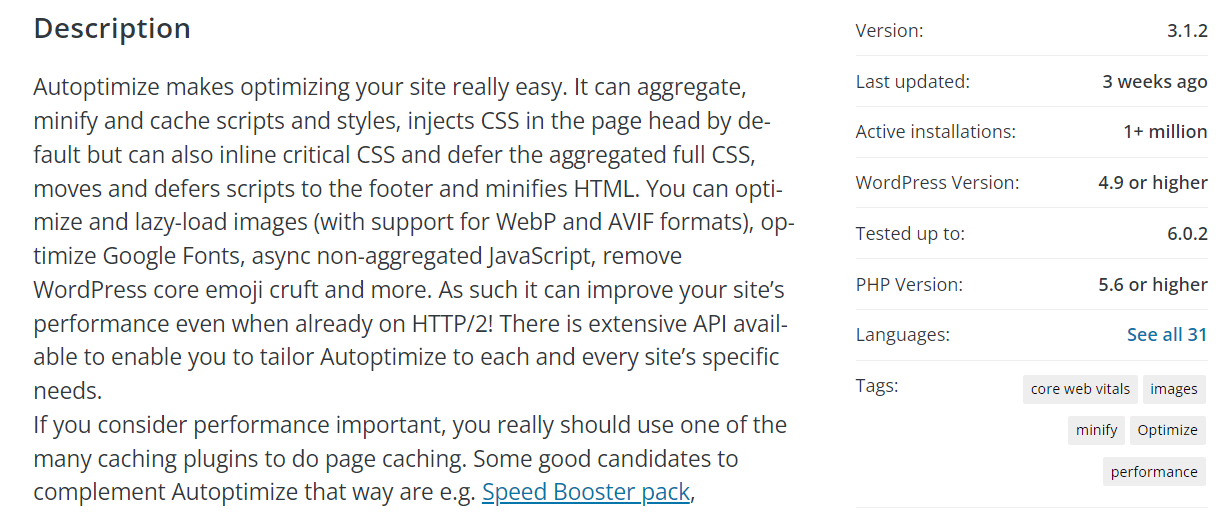
You can also improve the speed of your WordPress backend by optimizing CSS and JavaScript files. If these files are not optimized, they can cause significant delays in loading time. You can use a plugin like Autoptimize to optimize CSS and JavaScript files on your site.
By following these tips, you can speed up the admin area of your WordPress site and improve your website’s load time overall.
WordPress Database Slow
One common reason for a slow WordPress back end is because of slow WordPress database queries.
This can be caused by a number of factors, including too many plugins, an outdated PHP version, or an error on your site that’s causing a 500 error.
To speed up your WordPress back end, you can try a few different things:
- -Update to the latest PHP version: This will improve performance and security on your site.
- -Delete unused plugins: If you have plugins that you’re not using, delete them to improve performance.
- -Optimize your database: You can use a plugin like WP DB Manager to optimize your database and speed up loading times.
- -Disable heartbeat: The WordPress heartbeat API can cause high CPU usage and slow down your site. You can disable it by adding this code to your wp-config.php file:
define( 'WP_AUTO_UPDATE_CORE', false );
But be careful with Heartbeat plugins. You need frequent post updates and wordpress changes, then heartbeat will run in the background.
So if you disable it, it may slow wordpress panel. Transients manager helps to remove the junk of wordpress backend. The temporary data builds up and you can clean the unnecessary entries.
Clean WordPress Database
One way to keep your WordPress site running smoothly and quickly is to ensure that your database is clean and uncluttered. There are a few ways you can do this:
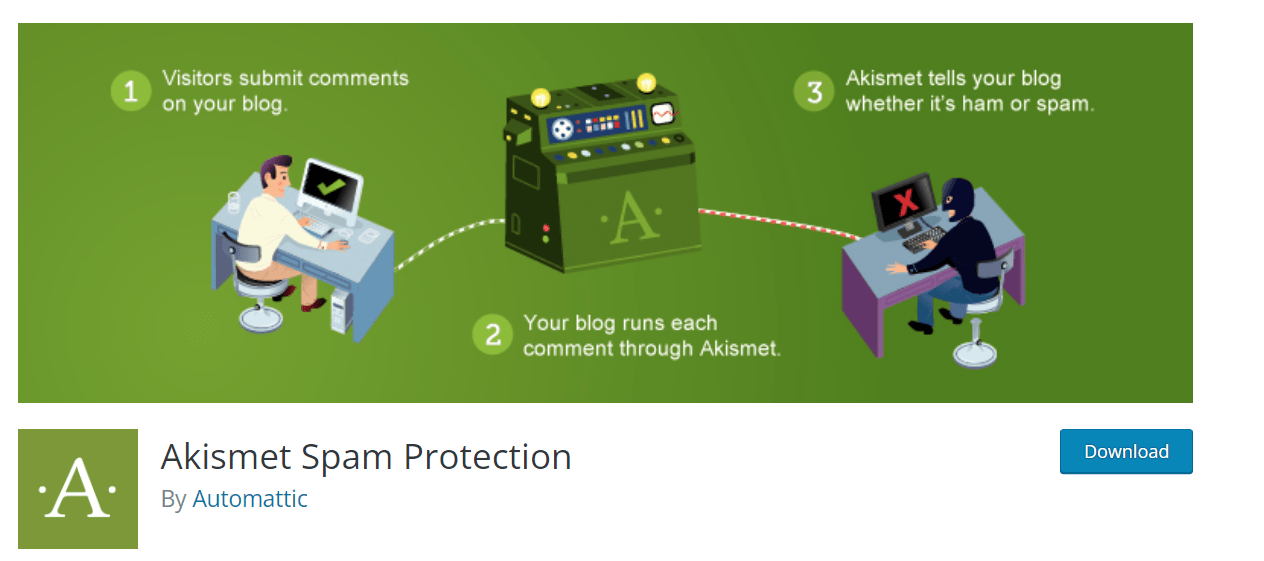
- -Prevent comment spam: Spam comments can quickly clutter up your database and slow down your site. Install a plugin like Akismet to help catch and filter spam comments before they get saved to your database.
- -Limit post revisions: By default, WordPress saves a revision of every post or page you create. If you’re not worried about going back and making changes, then you can safely disable this feature or limit the number of revisions that are saved.
- -Remove old plugin data: When you delete a plugin, it doesn’t necessarily remove all of its data from your database. Use a plugin like WP Clean up to remove old plugin data that’s no longer needed.
- -Use plugins garbage collector: This plugin helps clear out various “garbage” that builds up in your database over time, such as expired transient data, orphaned metadata, and more.
WordPress Backend slow to Load
There are a few ways to speed up the back end of your WordPress site. One way is to use a plugin that stores your data in a compressed format.
Another way is to reset your WordPress database periodically. You can also optimize your WordPress database by deleting unused data and minimizing the amount of data that is stored in each table.
One of the most frequent complaints we hear from WordPress users is that their backend is slow to load.
You can also disable dashboard for woocommerce, if it is making too many database requests.
If you’re anything like me, you’ve probably noticed that the WordPress backend can be a bit slow to load at times. Here are a few tips to help speed things up:
- Use a caching plugin.
- Optimize your images.
- Minimize the number of plugins you use.
- Keep your WordPress installation up to date.
- Use a content delivery network (CDN).
WordPress backend langsam
WordPress is a great platform for managing a website.
However, one of the potential issues you may encounter is that the back end can become slow.
This is usually due to a connectivity issue between your WordPress site and your database.
There are a few things you can do to speed up the back end of your WordPress site:
-Upgrade your hardware:
If you are using an older computer, it may be time to upgrade to a newer model. This will help improve the speed and performance of your WordPress site.
-Disable database and object caching:
Caching can help improve the speed of your WordPress site, but it can also cause problems if not properly configured. If you are experiencing slowdowns, try disabling database and object caching.
– Optimize your images:
Large images can slow down your WordPress site. Try optimizing your images for faster loading times.
One common cause of slow loading times is a plugin conflict. If you have a lot of plugins installed, try deactivating them one by one and see if that speed things up. You can also try deactivating all of your plugins and then activating them one by one to narrow down the problem.
Hosting Plan Issues
Another possible cause is an issue with your theme. If you’re using a custom theme, try switching to a default WordPress theme and see if that solves the problem.
If it does, you’ll need to contact the developer of your custom theme and ask for help troubleshooting the issue.
Finally, it’s also possible that your hosting company is causing the problem.
If you’re on a shared host, try contacting their support team and asking if there are any known issues with WordPress sites on their servers.
If you’re on a VPS or dedicated server, you can check your server’s logs to see if there are any errors that could be causing the slow loading times.
By following these tips, you can help speed up the back end of your WordPress site.
How to Reduce page load time using WordPress Plugin?
There are many ways to reduce the page load time of your WordPress site. One way is to use a caching plugin. Caching plugins create static HTML files from your dynamic WordPress site.
When a user visits your site, the static HTML file is served instead of the WordPress PHP scripts. This reduces the server load and speeds up the page load time.
There are many caching plugins available for WordPress. Some popular ones are WP Super Cache, W3 Total Cache, and WP Super Minify.
Another way to reduce the page load time of your WordPress site is to use a plugin like Autoptimize. Autoptimize minifies and caches JavaScript and CSS files. This reduces the size of these files and speeds up the loading time of your pages.
You can also improve the performance of your WordPress site by using a CDN (Content Delivery Network).
A CDN stores copies of your website’s files on servers around the world. When a user visits your site, they are served the file from the nearest server, which speeds up the page load time.
There are many other things you can do to speed up your WordPress site. For more information, see our article on how to speed up WordPress.
Conclusion
So, there you have it. Speeding up your WordPress backend doesn’t have to be a nightmare. Whether it’s cleaning up your database, limiting plugins, or upgrading your hosting, each step can make a huge difference.
Here’s a recap:
- Database optimization can give you up to 25% faster backend performance.
- Reducing plugins can improve admin panel load time by 30-40%.
- Upgrading hosting can boost speeds by 25-50%.
- Implementing object caching can reduce database query load times by 50%.
- Optimizing images can reduce backend load time by 10-15%.
Trust me, I’ve been there—frustrated, confused, and ready to throw my laptop out the window. But with a little patience and some smart optimizations, you can get your WordPress admin dashboard back to blazing fast speeds. Don’t be afraid to experiment and find what works best for your site.